Shared team calendar

One team calendar where everyone sees their shifts, on their phone

You set the shifts and assign people to them. Everyone finds the up-to-date schedule on the web and in the mobile app, with no file to send round.

  • Teams. Floor, Kitchen, Bar: each one sees its own calendars.

  • Assigned shifts. Every shift shows its time and the people on it.

  • Reminders. By notification or email, before the shift.

Free for up to 3 users, no credit card.

The same schedule on a phone: the floor shifts, day by day

Example: three days in a seven-person restaurant.

How it works, in three steps

The example follows a seven-person restaurant. The principle is the same for a shop, a charity or a site crew.

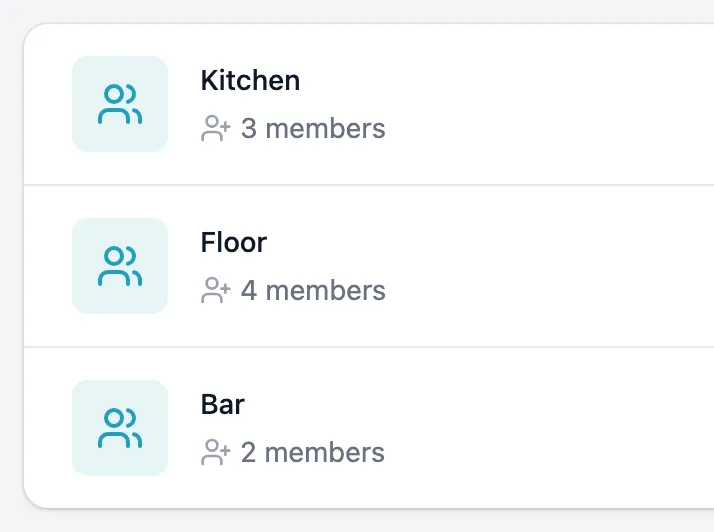
  1. List of the Floor, Kitchen and Bar teams with their number of members

    Create your teams

    Floor, Kitchen, Bar: you group the people who work together. Each person gets an email invitation, or a simple username if they have no email address.

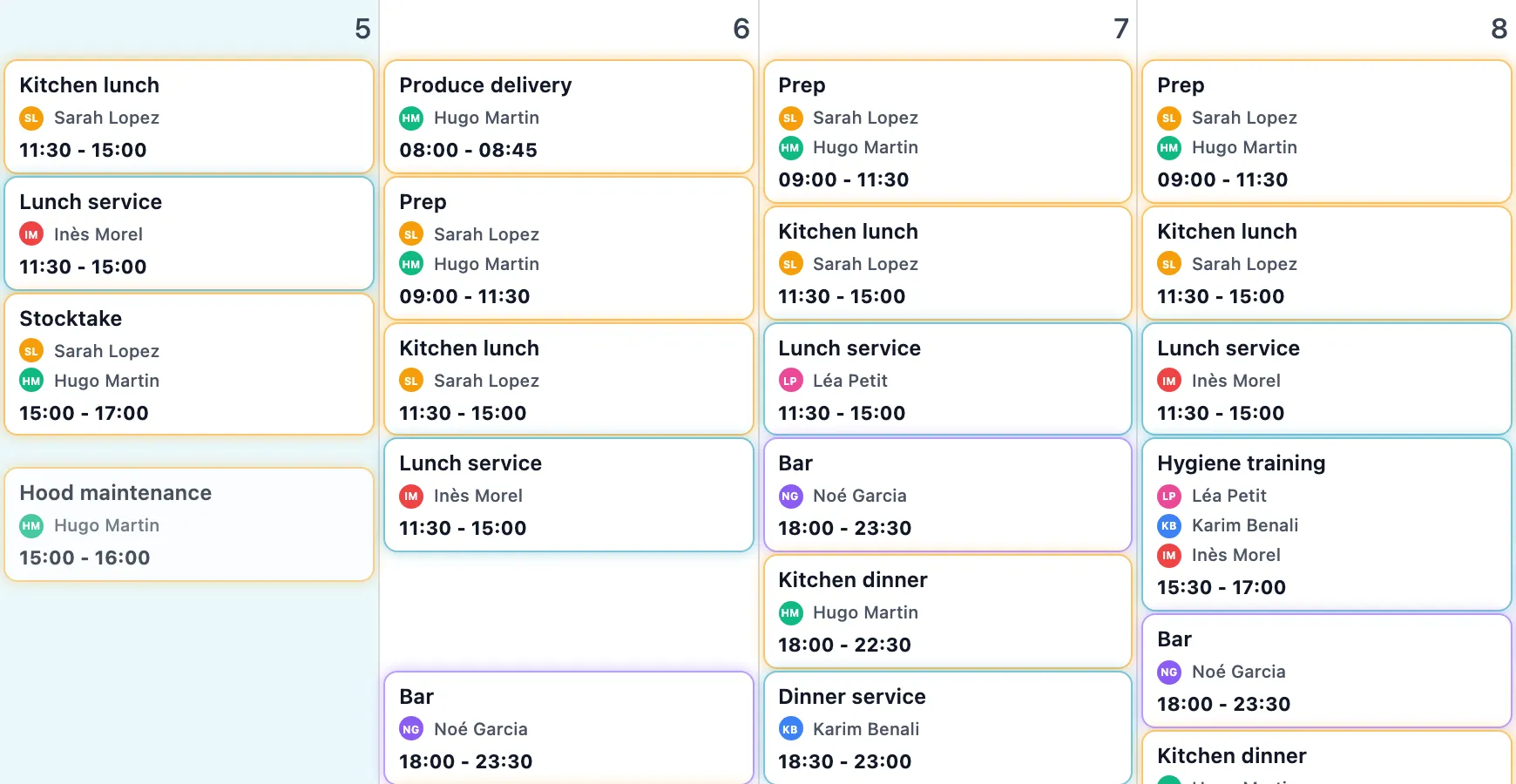
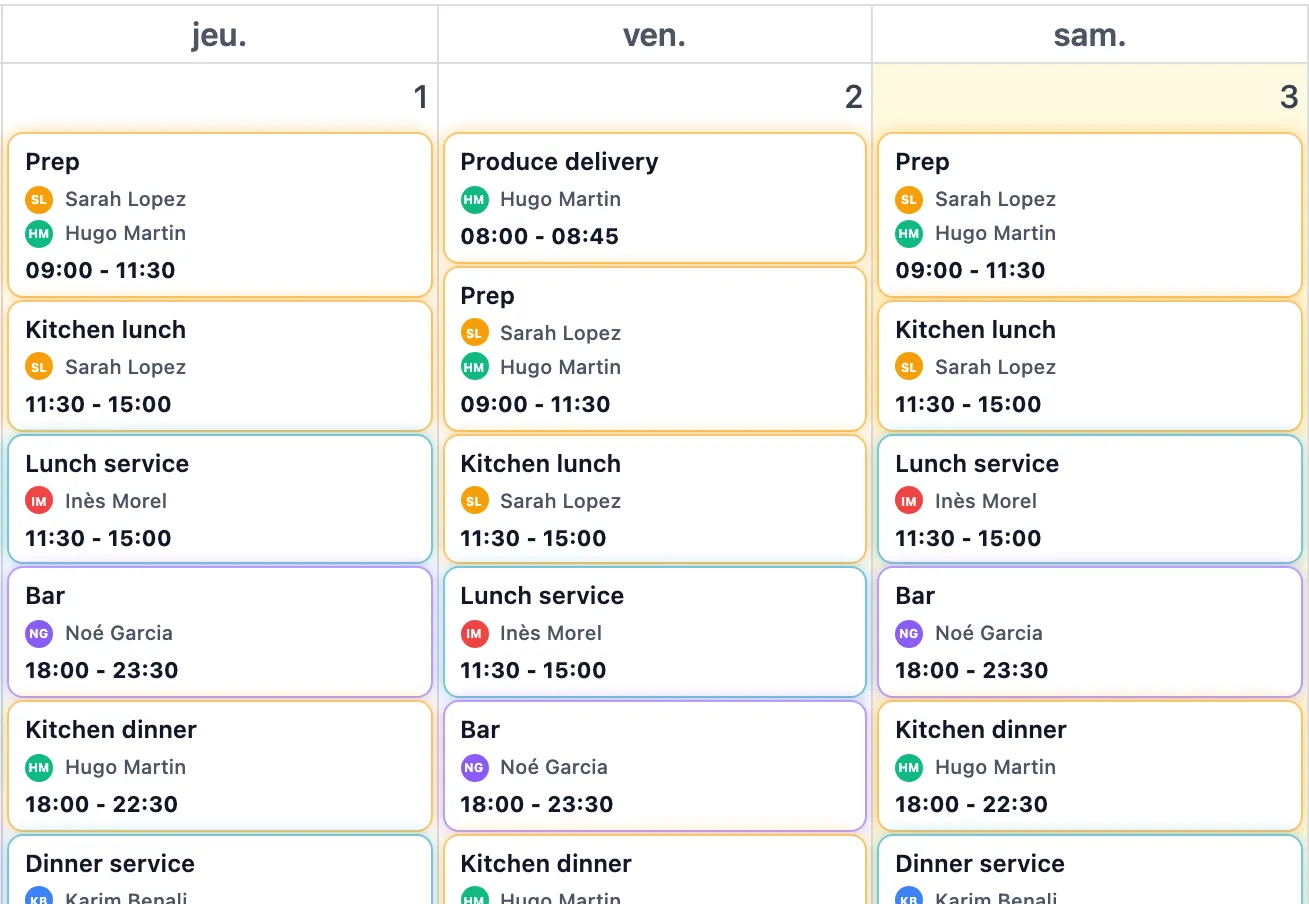
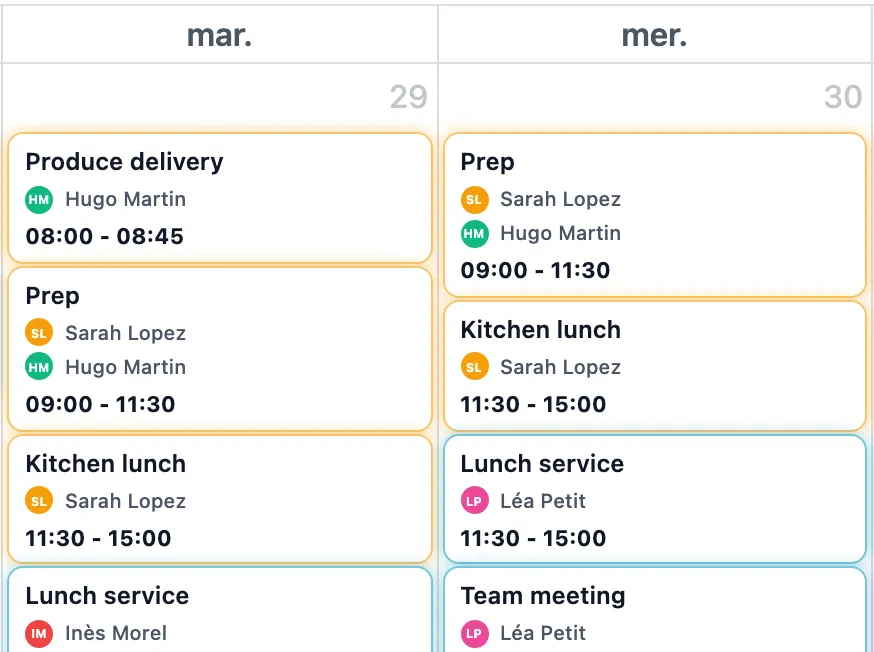
  2. Two days of the shared calendar: each shift shows its time and the people assigned

    Put the shifts in the calendar

    Lunch service, prep, team meeting: each shift has a time and the people assigned. Each team has its own calendar and color.

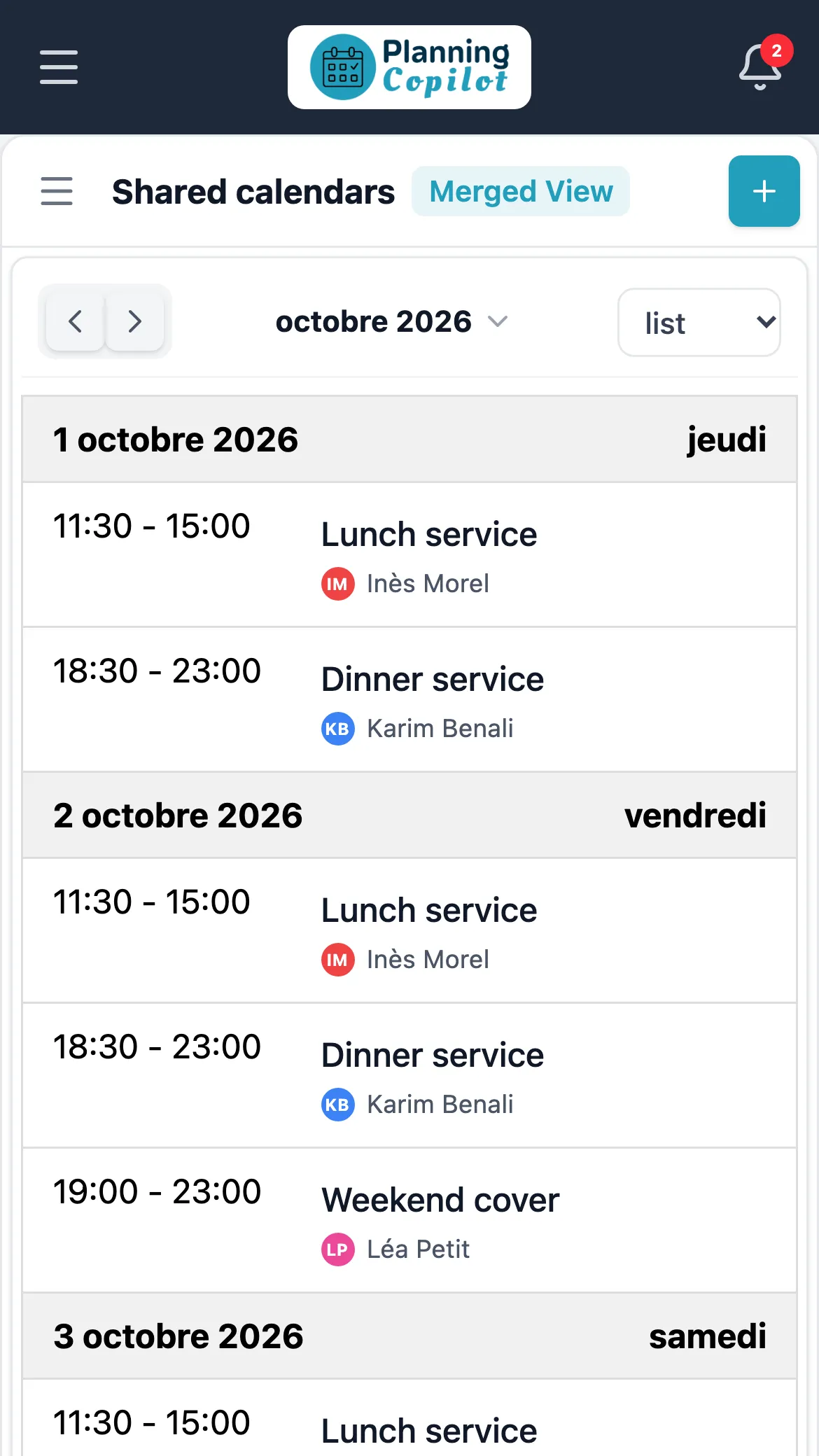
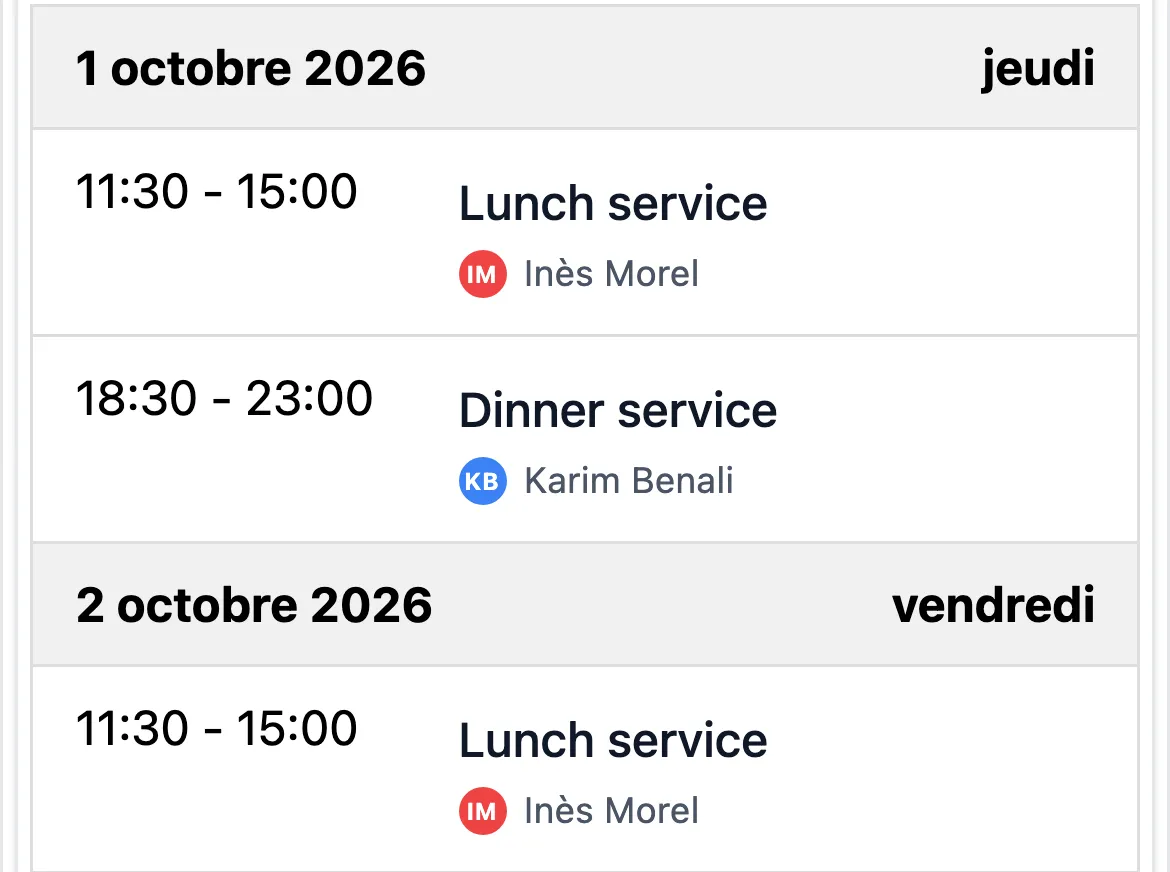
  3. List of the Thursday and Friday shifts on a phone

    Everyone opens their schedule

    Inès, Karim and Léa find the floor shifts on their phone, in the app or the browser. If something comes up, they comment directly on the shift.

Four words to know

Team:
a group of people.
Calendar:
the schedule of one or more teams.
Event:
a shift, with its time and its people.
Role:
what each person is allowed to do.

Five actions, in the order you will use them

From the first typical week to sharing with a temp.

Action 1

Build the typical week

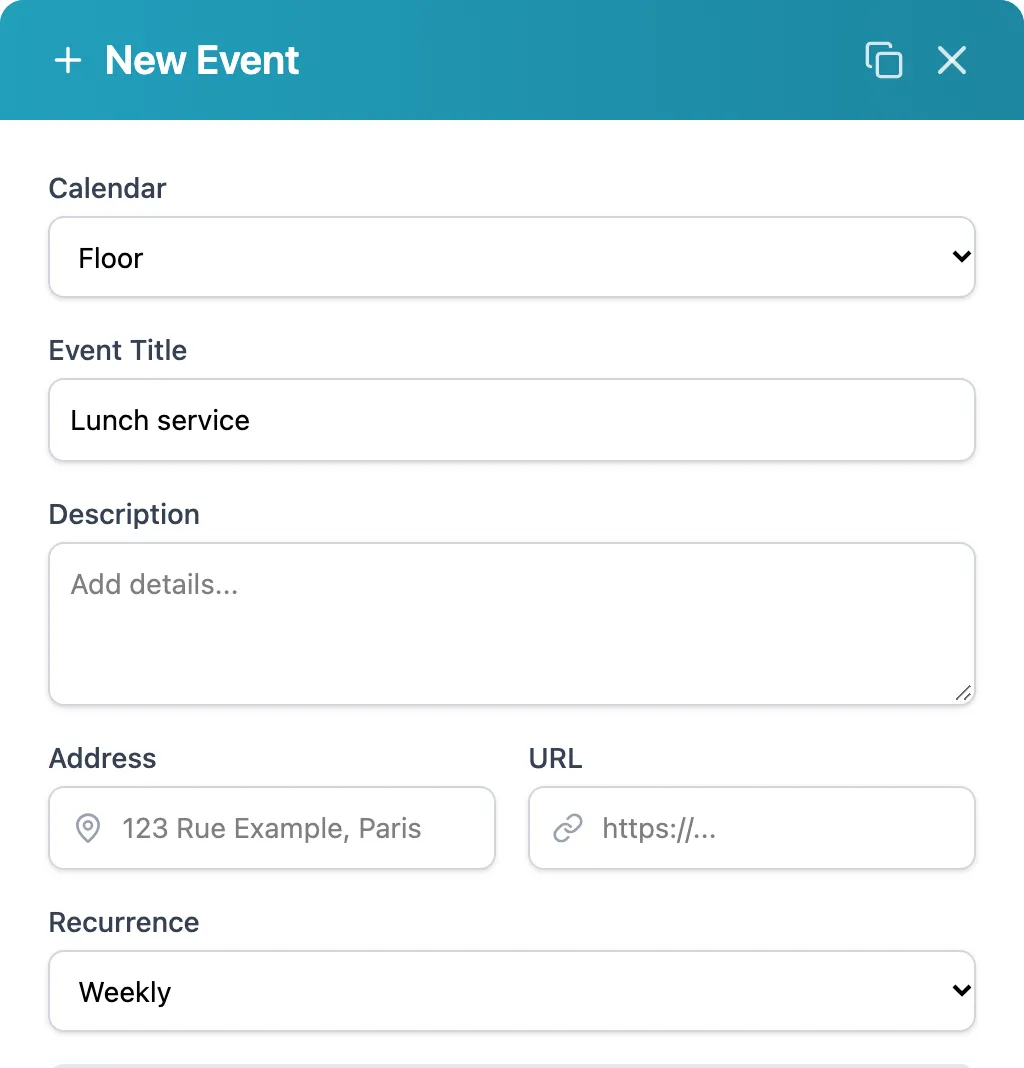
Create a shift once and choose its recurrence: it comes back every day, every week or every month. Duplicate it for another day. Later, change a single date or all the following ones.

  1. The team's calendar
  2. The name of the shift
  3. The recurrence
New Event window: Floor calendar, title Lunch service, weekly recurrence

Action 2

See the whole team, or just one

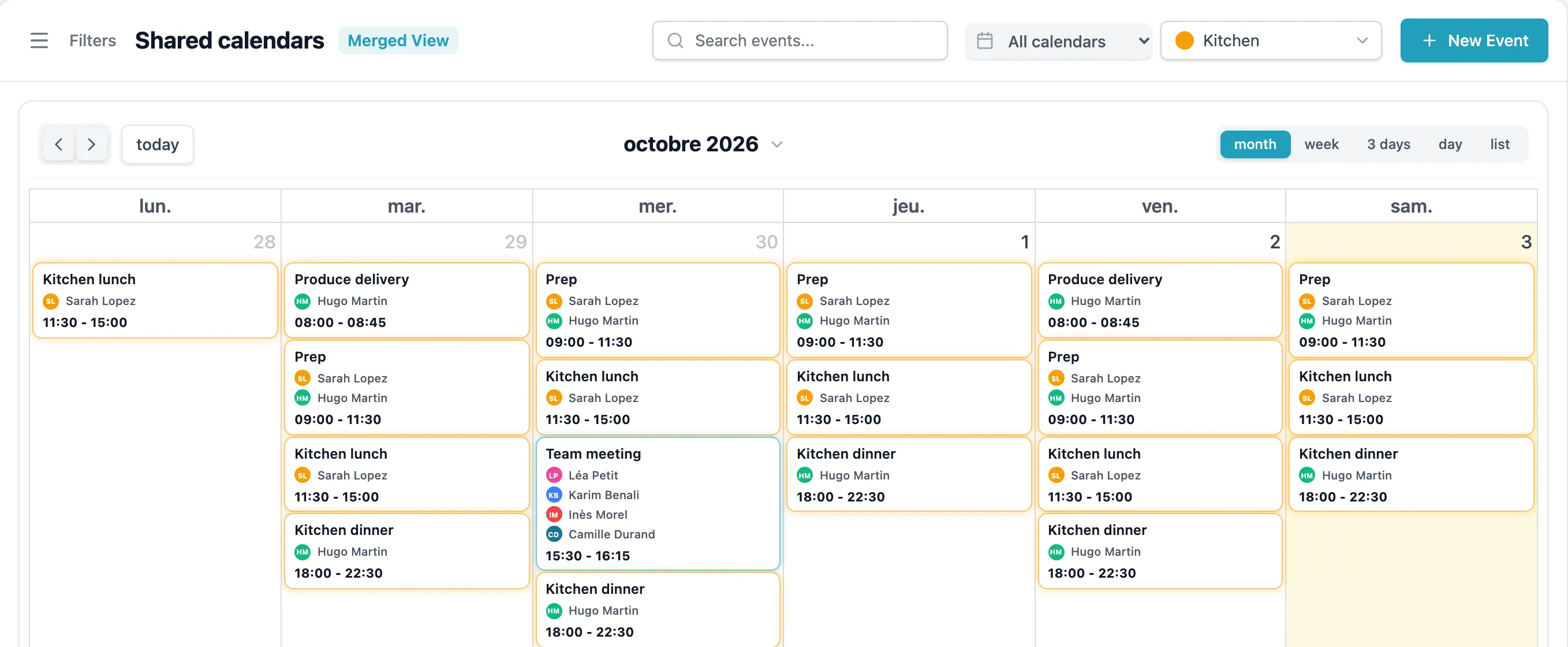
Five views: month, week, 3 days, day and list. A filter by team, by calendar or by person isolates what you need. Here, the kitchen only.

  1. The calendar filter
  2. The team filter: here, the kitchen
  3. The five views
Month calendar filtered on the Kitchen team: only its shifts remain

Swipe the image to see the rest

Action 3

Move a shift

Something came up? On a computer, grab the shift and drop it on another day or time. There is only one schedule, so the change applies to the whole team.

  1. The shift leaves Tuesday
  2. You drop it on Monday
A shift being dragged from Tuesday to Monday in the month view

Swipe the image to see the rest

Action 4

Remind and comment

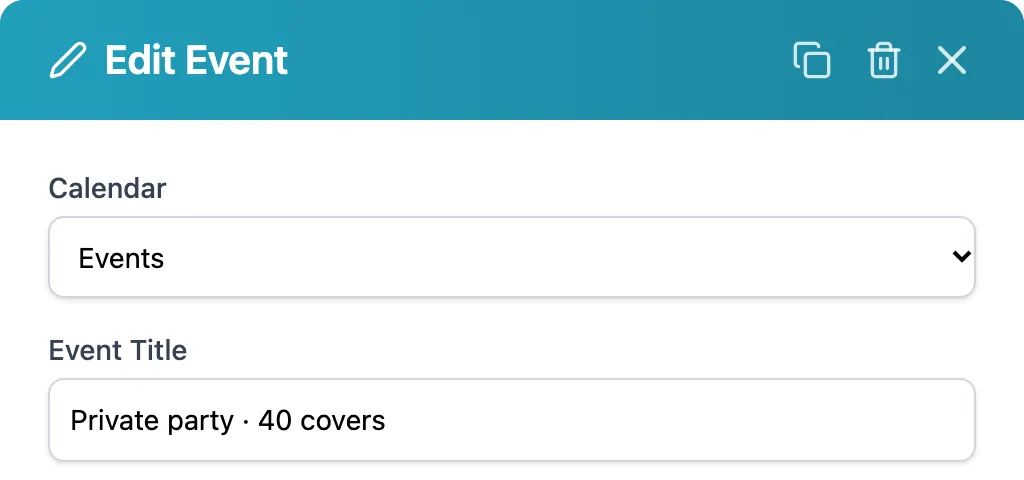
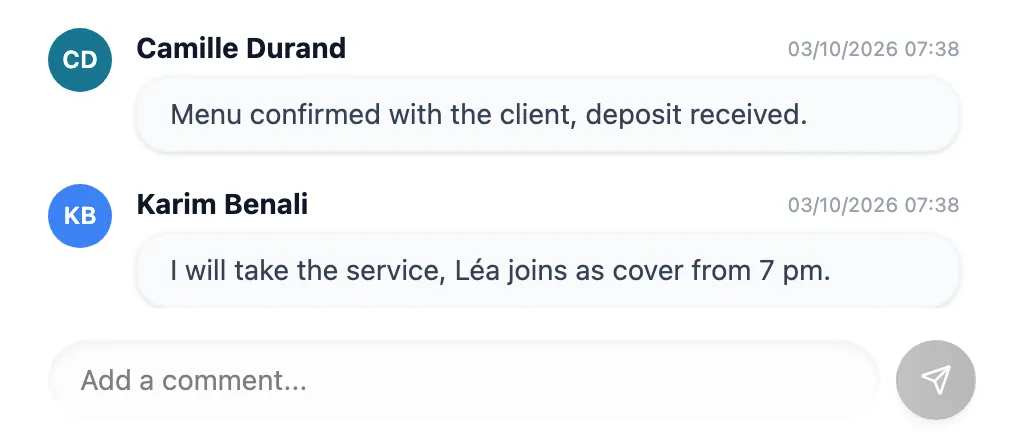
Add a reminder to an event: the people assigned receive it by notification or email, minutes, hours or days before. Anyone can leave a comment on the shift, and the people assigned are notified.

Two comments on the private party event: menu confirmed, cover arranged

Action 5

Share or export

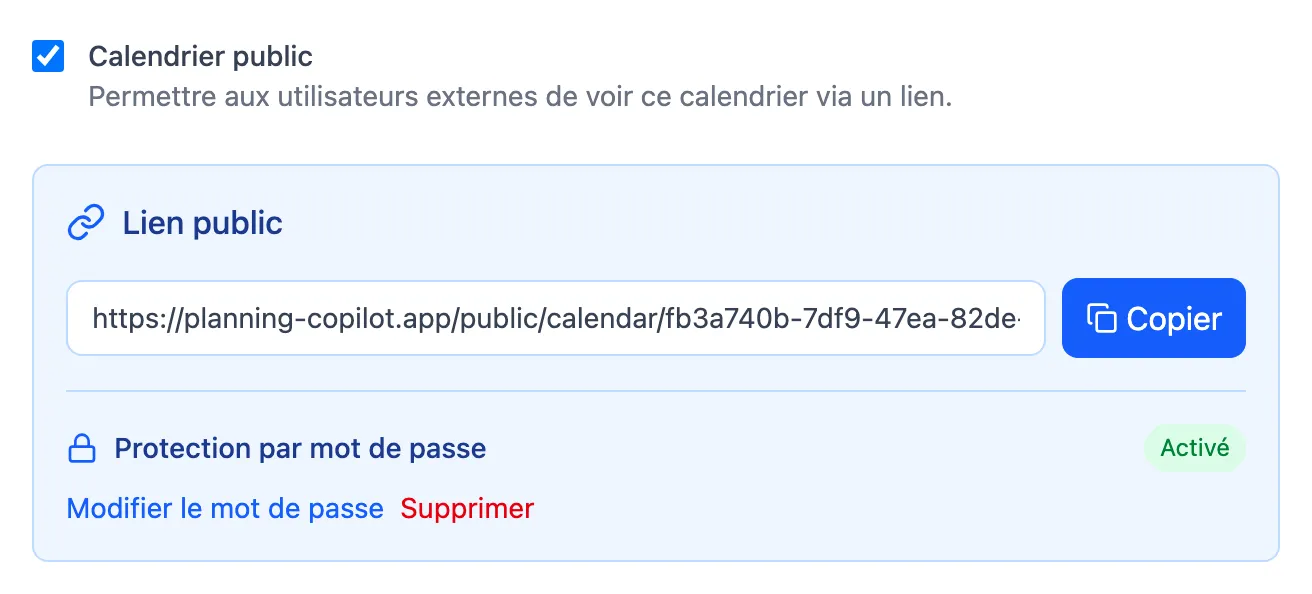
A calendar can be opened through a public link, with or without a password: handy for a temp or a contractor with no account. You import from Google Calendar, ICS or CSV, and export to ICS or CSV.

Public calendar setting: sharing link and password protection switched on

Three roles, so everyone has the right access

You choose each person's role when you create their account.

Right Consultant Reads User Schedules Admin Organizes
See the calendars of their teams Yes Yes Yes
Receive reminders and comment Yes Yes Yes
Create events in shared calendars No Yes Yes
Manage teams, calendars and accounts No No Yes

In the example: Léa, a temp, is a Consultant. Inès, head waiter, is a User. Sarah, head chef, is an Administrator.

The account that creates the organization is the Director: it has administrator rights and also manages the subscription.

What you stop doing

You enter the typical week once. After that, you only touch the exceptions.

No more Excel schedules to redo every week

The schedule lives online. You change it, and everyone has the right version.

No more Google Calendar accounts to create for everyone

You create your team members' accounts, even without an email address.

No more “when am I working on Saturday?”

Everyone opens the schedule on their phone and finds their name.

Suited to your sector

The same tool, with the words of your trade.

Restaurants

Lunch and dinner services, split shifts, weekend temps.

Shops

Opening, closing and rotas, for one shop or several.

Agencies

One calendar per client or project, freelancers included.

Charities and clubs

Volunteer shifts and activities, free for up to 3 users.

Home care

Rounds, on-call shifts and replacements.

Construction and field work

Crews assigned per site, with the address on every event.

Frequently asked questions

What is a shared team calendar?

A calendar viewed by a whole team, in which every event carries the people assigned to it. In Planning Copilot, a calendar is attached to one or more teams: their members see it, the others do not.

Do my team members need an account?

To receive reminders and comment, yes: they get an email invitation, or a simple username if they have no email address. To view only, a calendar can be shared through a public link, with or without a password.

Can I import my Google calendar or an existing file?

Yes. Planning Copilot imports Google Calendar calendars as well as ICS and CSV files, and exports each calendar in ICS format.

What does the free plan include?

3 users, 1 team and 1 shared calendar, with no time limit and no credit card. Paid plans, from €5 to €40 per month, are free for 3 months.

In short, three advantages

  • One schedule, always up to date

    The same calendar for the whole team, on the web and on mobile.

  • Everyone knows when they work

    Their name on every shift, a reminder by notification or email.

  • Free for up to 3 users

    No credit card. First schedule ready in 3 minutes.

Ready to organize your team better?

Create your first schedule in three minutes.

Free for up to 3 users · No credit card

Take your schedule everywhere

Download the Planning Copilot app on your smartphone and keep control of your schedules wherever you are.

Try for free Download on the App Store Get it on Google Play